Get paid: set up mobile money & card payments
Who this is for — you have (or are opening) an account with a payment provider and want customers paying you directly, straight to your own account.
Payments in AccessCore are yours end to end: you connect your own provider account with your own keys, customers pay into it, and AccessCore's job is the handshake — confirm the money landed, then put the customer online instantly. We never sit between you and your money.
The three ways to take payment
- Mobile-money push
The customer types their number, a payment prompt pops up on their phone, they enter their PIN — done. The fastest path for walk-up WiFi sales; the customer's mobile network is detected from their number automatically.
- Hosted checkout
The customer is taken to your provider's secure payment page (card or mobile money) and bounced back when they've paid.
- Manual / Bank transfer
No provider at all: the buyer sees your payment instructions and a reference number, and you confirm each payment yourself under Transactions → pending orders. Good as a backup, or while your provider account is still being opened.
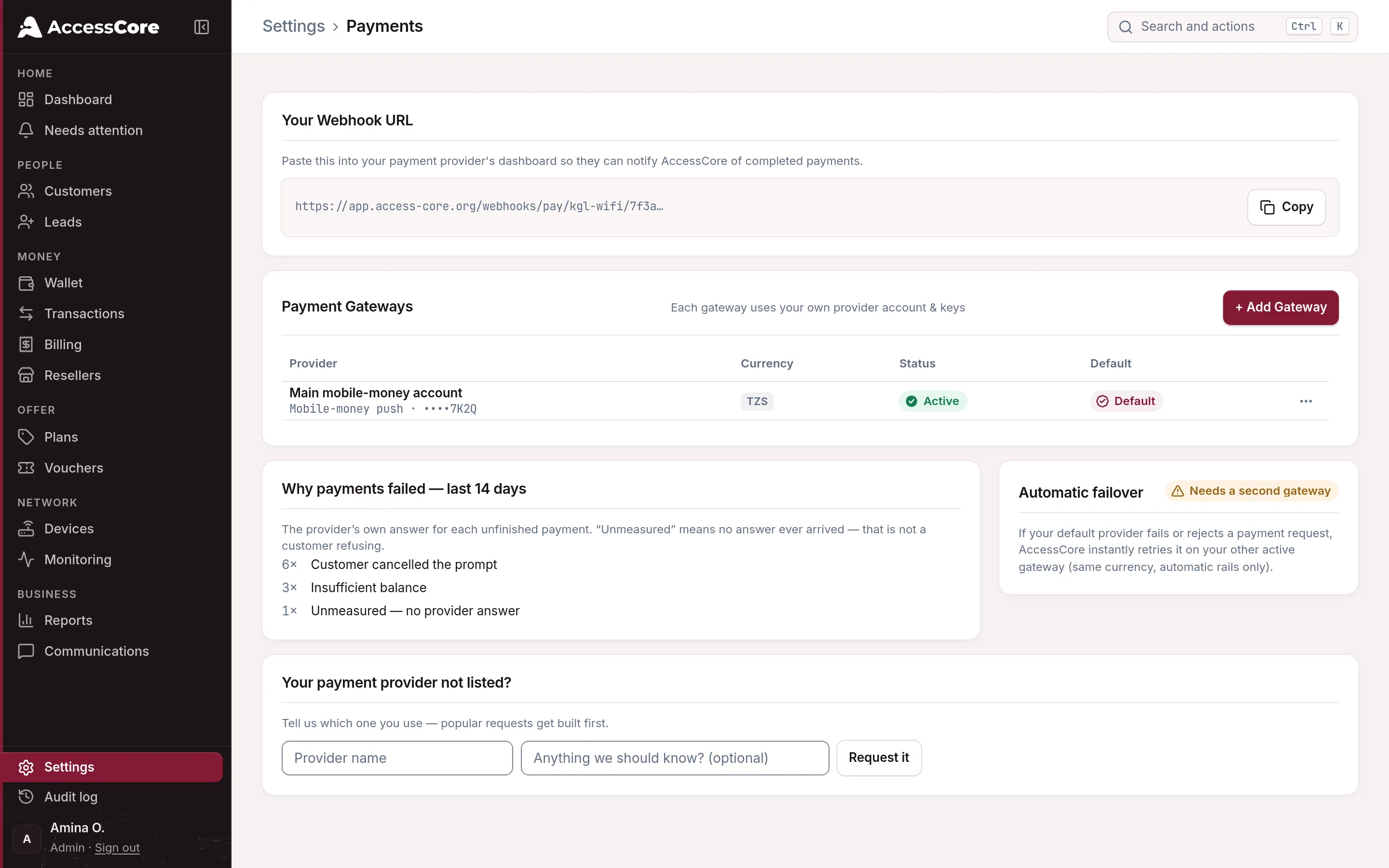
The Payments page shows the providers currently built in, each labelled with how it completes. If yours isn't there, use the Your payment provider not listed? card at the bottom — popular requests get built first.
Connect your gateway
- Open Settings → Payments
With no gateway yet the page shows No payment gateway yet — customers can't pay until one is active.
- Click + Add Gateway and pick your provider
Each provider card explains how it completes payments before you commit.
- Paste your keys
From your provider's own dashboard, copy the keys into the credential fields — they follow your provider (a client ID and secret, an API key, a merchant code). Give it a Display Name you'll recognise, check the Currency, and tick Active and Set as default.
- Give your provider the webhook address
Copy Your Webhook URL from the top of the Payments page into your provider's dashboard. This is how they tell AccessCore "the money arrived" — for some providers payments never confirm without it, so don't skip it.
- Click Save Gateway, then test it for real
Buy the cheapest plan from your own WiFi page with your own phone. There is no substitute for one real end-to-end payment.
 Your webhook URL
 Keys from your provider
What your customer experiences
On your WiFi page they pick a plan, enter their mobile-money number and tap Pay. A three-step tracker walks them through Request sent → Approve on phone → Connected — the page tells them to check their phone and enter their PIN. The moment the payment confirms, they're online, with a access code to get back on if they switch phones. Money first, then access — always in that order, and if a payment fails, no money is taken.
Two gateways? Turn on failover. With more than one automatic gateway active, an Automatic failover switch appears: if your default provider fails or rejects a request, AccessCore instantly retries on your other gateway. The buyer never notices; every failover is logged.
If buyers stop getting prompts — the Payments page shows a Payment provider trouble alert when requests to your provider keep failing. That almost always means a problem on the provider side: check your account standing and keys there first.
What success looks like
- Your gateway shows Active and Default on the Payments page, and the red "needs setup" dot is gone.
- Your webhook URL is saved in your provider's dashboard.
- A real test purchase went through: prompt → PIN → Connected, and the sale is in Transactions.
Write to [email protected] — a person reads every message.