Your customers' self-service portal
Who this is for — you want to know what your customers actually see, put your brand on it, and know what to tell people who ask "how do I…?"
The portal is your shopfront: the page that opens when someone joins your WiFi. It carries your name, your logo and your colors — top to bottom, it's your business your customers are buying from. Customers use it to buy, redeem vouchers, reconnect, and (for home subscribers) manage their own account, which means fewer calls to you.
The WiFi page: three ways in
- Buy
Your plan menu. The customer picks a plan, enters their mobile-money number, taps Pay, approves on their phone, and they're online. The plan menu only appears when you have an active payment gateway (or you can control it — see below).
- Voucher
"Have a voucher code?" — type the code, tap Submit, online. No account needed.
- Reconnect
Every buyer gets a access code after their first connection. Disconnected, closed the page, switched phones? The Reconnect button plus that code continues their remaining time. Lost the code? Text me my code sends it to the phone that paid. There's also a live balance checker showing time left and data used.
There's nothing to install and no address to type: connect to the WiFi and the page opens by itself. If your gateway supports it, the portal is bilingual — customers flip between English and Kiswahili themselves, and their choice sticks.
 Buy · Voucher · Reconnect
The account page for home & office subscribers
Named subscribers (home lines, offices) get their own page at a link you'll find in Settings → Branding — share it once, e.g. on the receipt or by text. Signed in with the username and password you gave them, a customer can: see their plan, expiry and live data usage, renew or change plan and pay from their phone, keep a wallet balance and turn on Auto-renew from wallet so they never lose connection, download receipts, and update their own contact details and password. Every one of those is a call you don't get.
 Renew in seconds
Put your brand on it
- Open Settings → Branding
Everything previews live on the right — it's your real WiFi page, not a mockup.
- Set Portal name, Tagline and Logo
The name and logo top every portal screen. Square logo, under 700 KB.
- Pick your Brand colour
Presets or any custom color — the whole portal takes it on.
- Choose your Portal language
English only, Kiswahili only, or Bilingual — customer chooses.
- Decide how selling works
"Buy a plan" on the portal: Automatic (show when a gateway is active), or Always hide — sell by voucher only. Optionally enable the "Need internet at home?" lead form — hotspot users asking about a home connection land in your Leads inbox.
- Click Save branding
One line that isn't yours — on the free tier. While your workspace is on the free tier, the portal carries a small "Powered by AccessCore" line at the very foot of the page. That is the only place our name appears anywhere your customers can see, and it clears the moment your workspace is on paid usage. Nothing else on the portal is ours.

What to tell your customers
Word for word, this covers nearly every question:
- Buying:
"Connect to our WiFi — the page opens by itself. Tap Buy, pick a package, enter your mobile-money number, and approve the prompt on your phone. Screenshot your access code."
- Using a voucher:
"Connect to our WiFi, tap Voucher, type the code on your card, tap Submit."
- Got disconnected / new phone:
"Tap Reconnect and enter your access code — your remaining time is still yours. Lost it? Tap Text me my code."
- Home subscribers:
"Use the account link we gave you to renew, check your usage and get receipts — any time, no need to call."
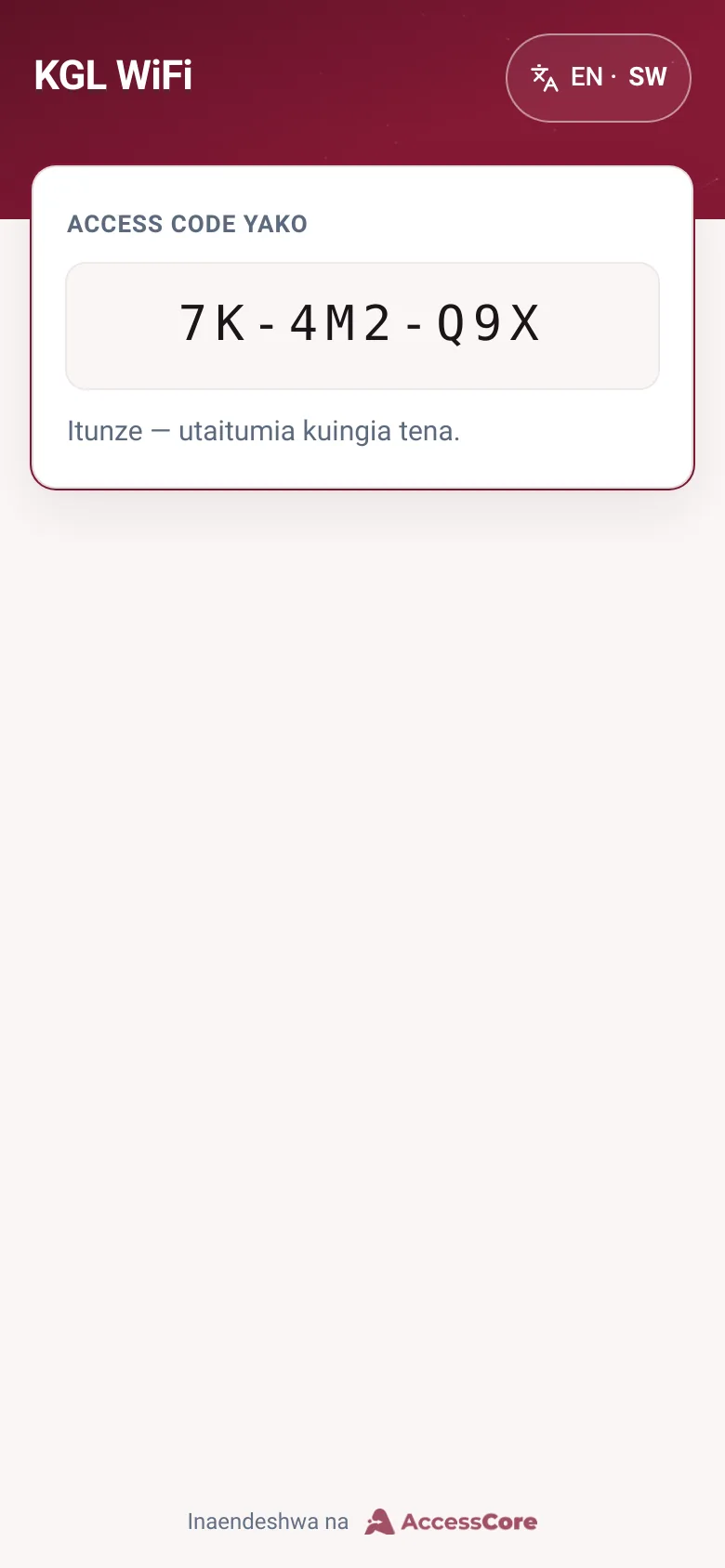
Already paid, trying to pay again? The portal protects your customers from double-paying: if their package is still active it steers them to Reconnect instead — "Don't pay again — enter your access code…". Fewer refunds, fewer arguments.
What success looks like
- The live preview in Branding shows your name, logo and color — and so does the real page on a phone.
- A test customer can buy or redeem without asking you anything.
- Brand your portal has checked itself off on your dashboard setup guide.
Write to [email protected] — a person reads every message.