Add customers & manage them
Who this is for — you're signing up subscribers — home lines, offices, named WiFi accounts — and handling the daily "extend me / move me / I'm offline" traffic.
Hotspot buyers mostly serve themselves through your portal. This guide is about the customers you manage: setting them up, changing what they're on, and — the classic — working out why someone is offline before they finish explaining it on the phone.
Add a customer
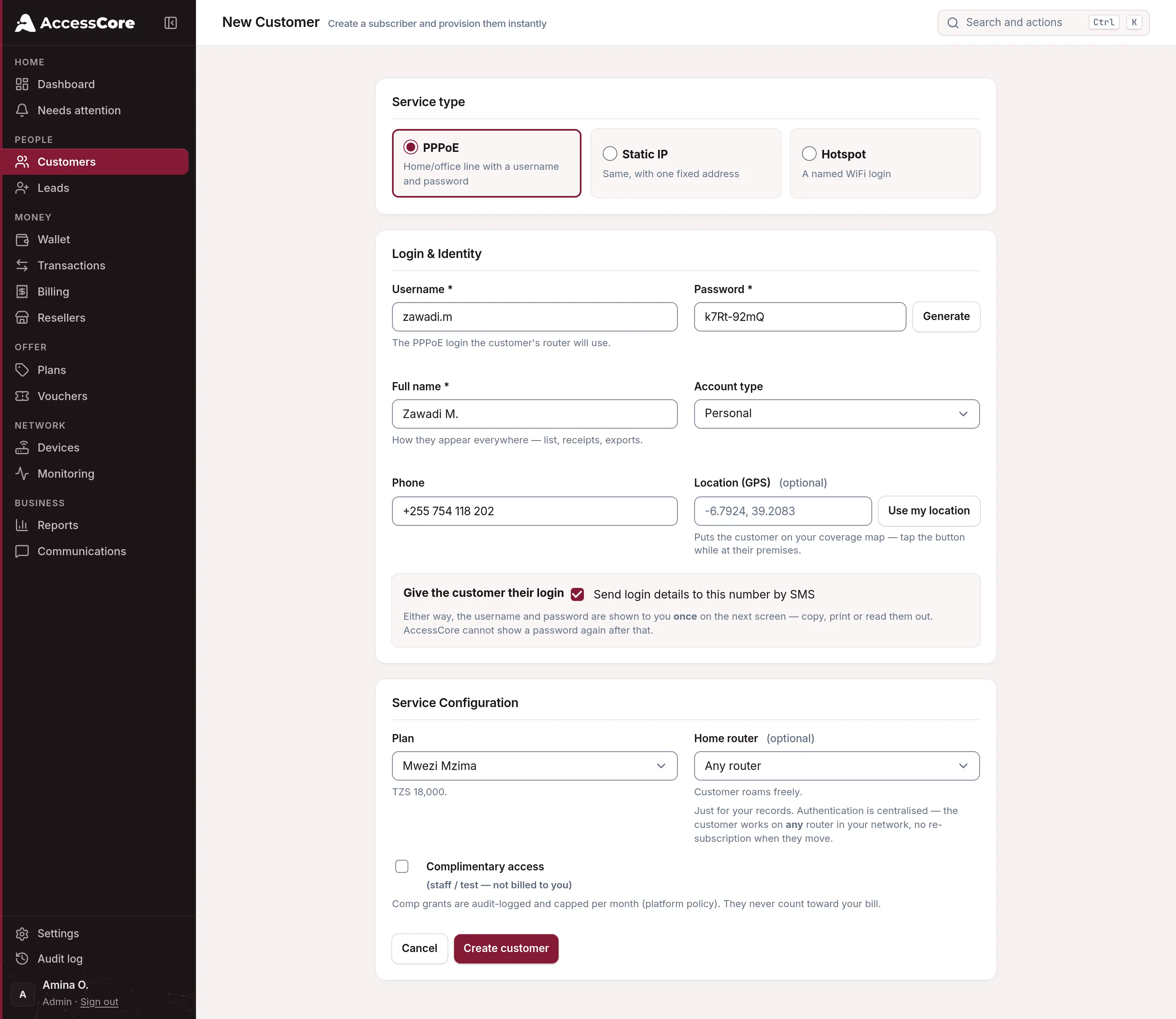
- Open Customers and click + Add Customer
- Pick the Service type
PPPoE — a home/office line that connects with a username and password (the default). Static IP — same, but with a fixed address (the Suggest button picks the next free one). Hotspot — a named WiFi login; for bulk prepaid codes use Vouchers instead.
- Set the login
Username and Password (there's a Generate button). Add their name and phone, and tick Send login details to this number by SMS so they get their credentials instantly. For PPPoE/Static, the customer's router dials exactly what the credential handoff shows — and with Natural CPE usernames switched on (Settings → Network defaults) that is just their plain username, so subscribers you import from a previous system connect without anyone touching their equipment.
- Pick their Plan — or set it later
You can also record a home device, but it's just for your records: sign-in is central, so the customer works on any of your devices with no re-subscription when they move.
- Click Create customer
They're provisioned instantly — the moment their device connects with those credentials, they're online.
Moving from another system? Import CSV on the Customers page brings your whole customer list over — it dry-runs the entire file and shows you a full report before a single row is written.
The daily moves
Everything below lives on the customer's page (click their row in Customers):
- Extend — add time without a payment
Pushes out their package expiry (1–30 days) and reactivates the account if needed. For goodwill, outage apologies, or "I'll pay you Friday".
- Change plan — move them and re-provision
The new speed and limits are set at once. If the customer is online, AccessCore drops their session so they come straight back on the new plan and the console tells you it did — "The customer reconnects on the new speed now." If they aren't online, it says "It applies on their next connection." instead, so you always know which one your customer got. You'll be asked what kind of change it is: Paid upgrade / downgrade (charges the prorated difference from their wallet, with a receipt) or Free correction (no charge, logged). Downgrades are never auto-refunded — issue a credit note if you owe them.
- Deactivate / Activate — the account switch
Deactivate flags the account off (non-payment, seasonal). Note: it doesn't kick a live session by itself — use Disconnect for that. Activate re-enables the account; they still need an active package to get online.
- Disconnect / Reconnect — the live-session switch
Drops or refreshes the customer's connection right now. Reconnect is also the fix-it button after changing settings on their line.
- Reset password
Generates a new password, shown once — copy it and share it securely. The old one stops working immediately.
- Issue credit
Records a credit note into their wallet — refunds, corrections, goodwill — with a reason and reference for your books.
"Why is this customer offline?"
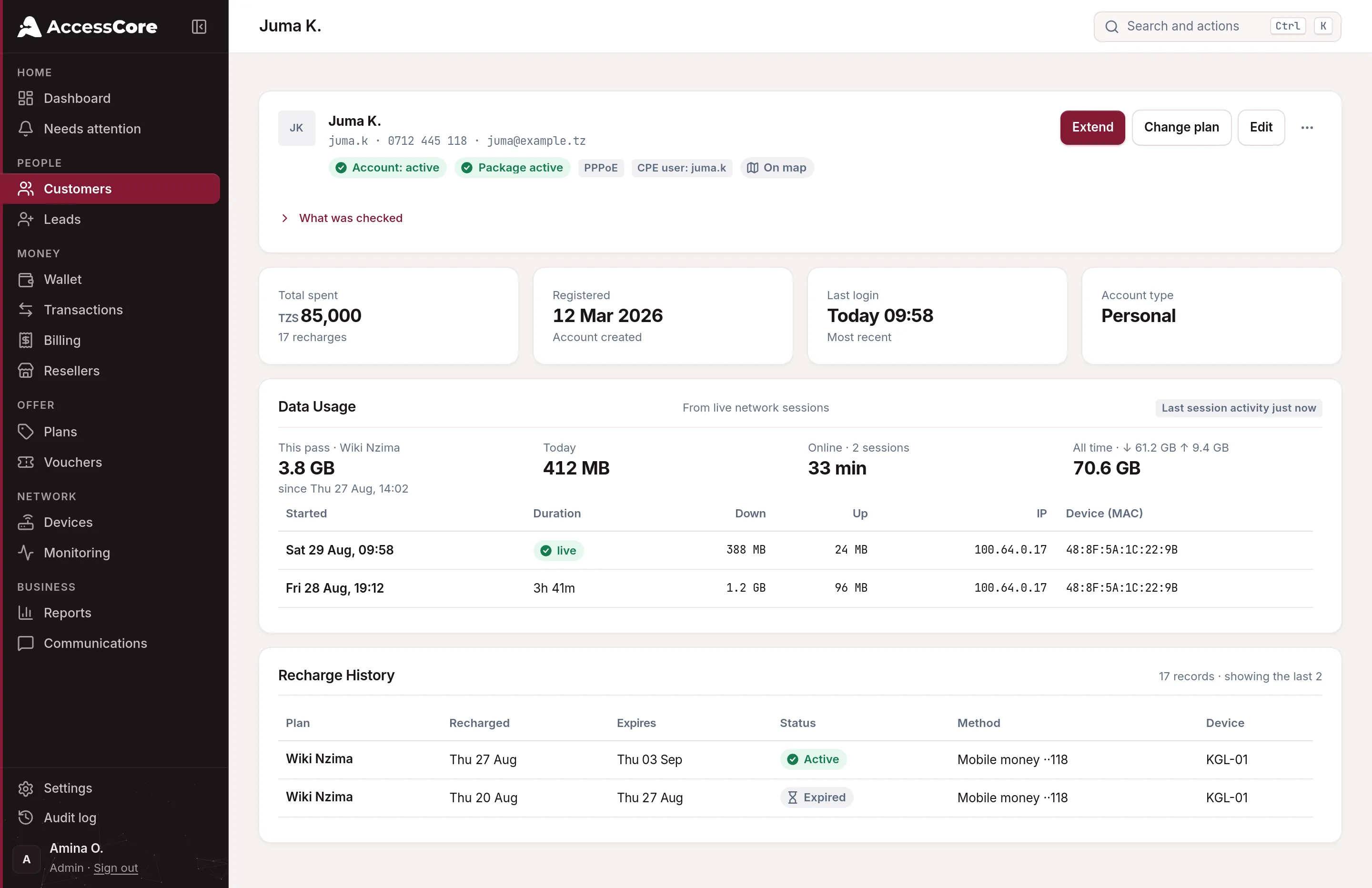
Open their page and read the header chips left to right — the answer is almost always right there:
- Check the header chips
The header carries one service state per customer — Account: active, Package active — and Data Usage shows the last session activity, observed on the network, not guessed.
- Check Package active vs No active package
Expired package: money is the fix — Extend or a new payment brings them back. The page says this in so many words.
- Package active but offline?
Then it's nearly always the customer's own equipment. The page suggests exactly what to say: ask them to power-cycle their device before anything else.
- Still stuck? Open the Data Usage card
Every session with start time, duration, data and device. No sessions ever = their equipment has never connected — check the username/password on their device. Sessions that stop at the same time daily = power problem at their end, not yours.
What success looks like
- Your customer shows a green Package active chip, and Data Usage reads Last session activity just now.
- You can extend, move or suspend anyone in under thirty seconds.
- "Why am I offline?" calls end with you reading the answer off the customer's page, not visiting the site.
Write to [email protected] — a person reads every message.